Beam Navigator
Know where to point. Never miss your turn.
Following a VHF/UHF net? Beam Navigator shows where to point toward net control, which sector you’re in, and gets your beam back to the controller after a contact. Running a net? Log check-ins fast, recognize your regulars, and publish the roll call when you’re done.
Windows: a simple installer, no administrator password. macOS, Linux and Raspberry Pi: from the source on GitHub.
Less guessing. Smoother nets. More time on the air.
Why I built it
When I started spending more time on weak-signal nets, I didn’t always know where net control was pointing, or whether the direction being called included me. “I’m pointing north now.” North from where? The regulars knew the routine. I was still learning it.
So after a long drive home from K3LR and two Pack Rats nets I couldn’t keep up with, I built Beam Navigator to make it easier to follow along.
Terry, N2LQH · Read the whole story
Pick your seat on the net
I follow nets
- See the bearing from your station to net control, not his.
- See where net control has to point to hear you, worked out properly, not by adding 180°.
- Press the announced direction on the number pad and get a clear YOUR SECTOR IS UP when it’s you.
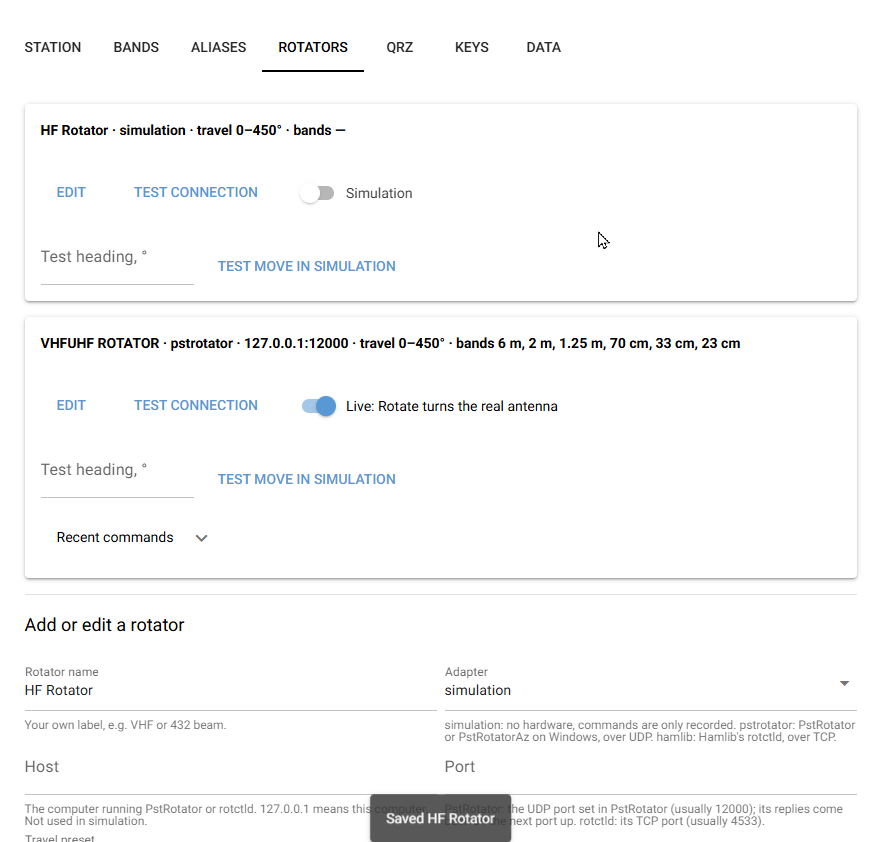
- One Target, one Rotate button. Press Home to rotate back to net control, if you have a rotator set up.
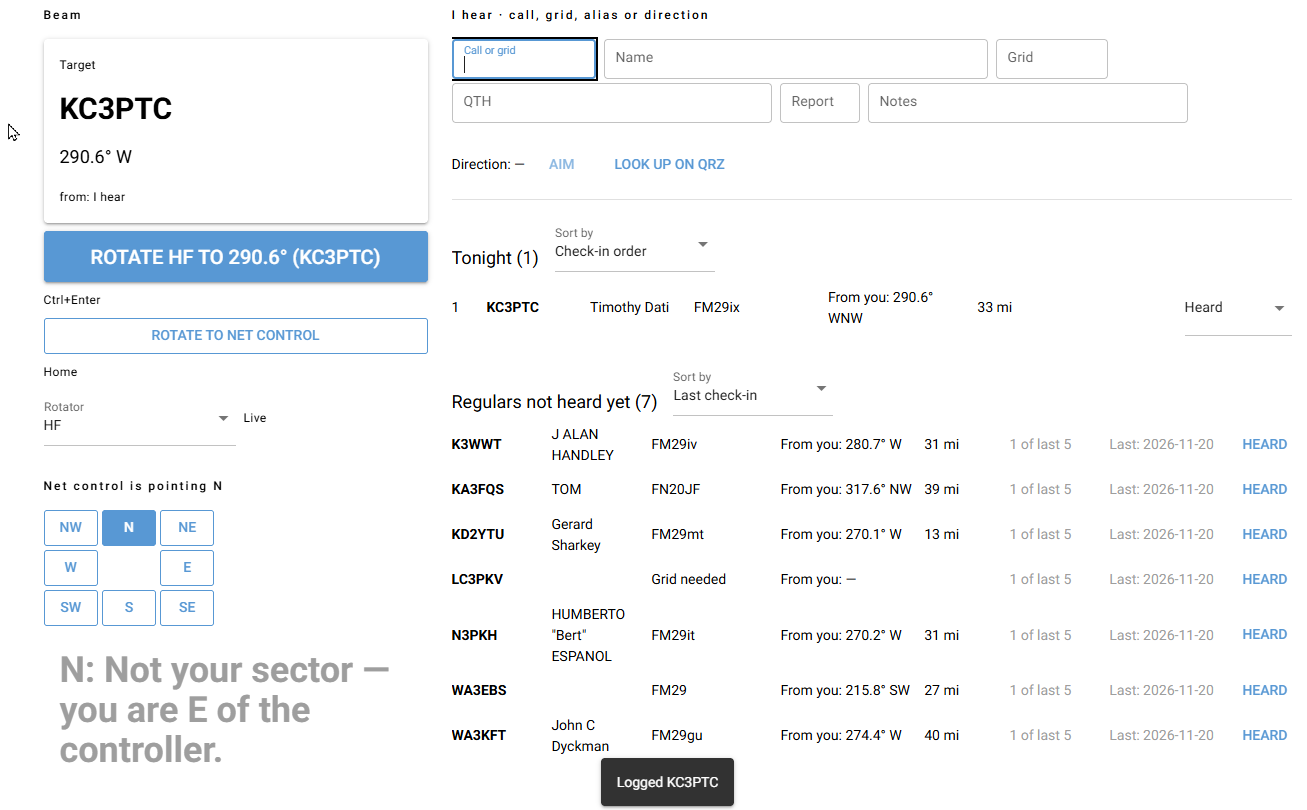
- One box does it all. Type the call of a station you hear and pause. Name, grid and location fill in, Ctrl+Enter turns the beam, Enter logs it. Regulars who haven’t checked in yet are listed for you.
- See where net control is pointing. The compass lights up the direction he’s beaming, so you know when it’s your turn to listen.
- Close your session with a note, and it’s waiting for you next week.
- Import the roll call after the net, so next week’s regulars aren’t strangers.
I run nets
- Keyboard-first check-in logging, like a contest logger.
- Regulars come up after two or three characters, with their names and grids.
- Bearing and distance from net control for every station.
- Duplicate check, so nobody gets logged twice.
- Import last week’s roster. Missing grids get filled in from your saved stations or QRZ, and each one says where it came from.
- Export a ready-to-post roll call as text, CSV or JSON.
See it in action
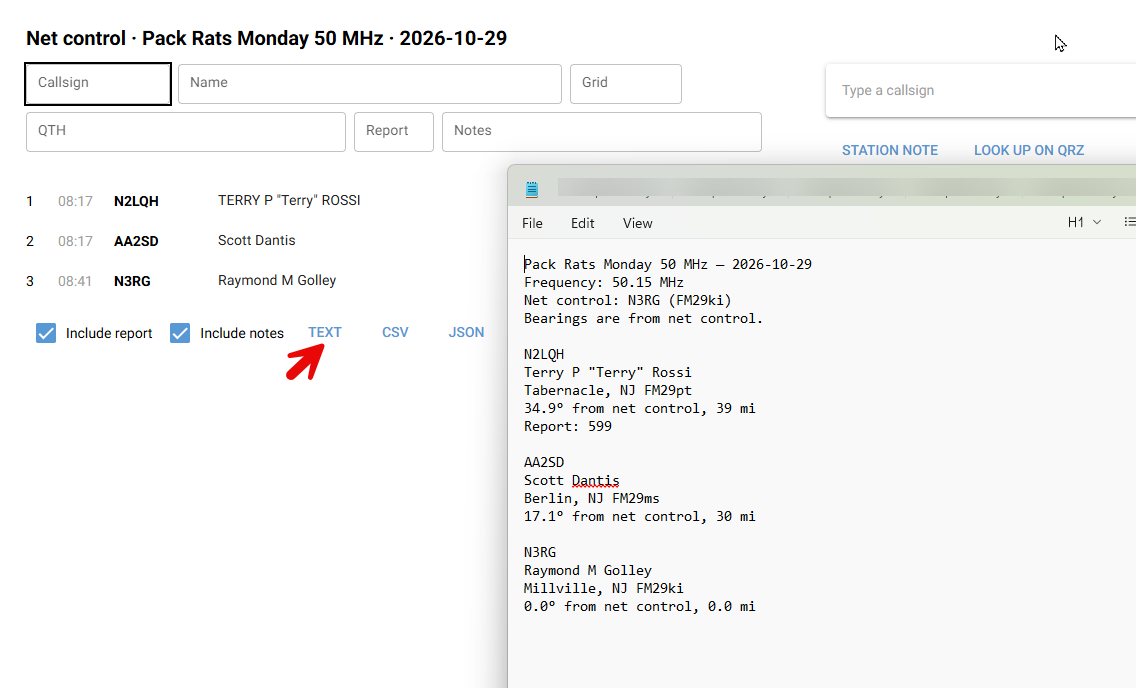
Want every screen? Take the screen-by-screen tour.
What’s new in 1.5.0
This release came straight from a Friday night 6-meter net.
- One box for everything. Type a callsign and it fills in and becomes the Target. Ctrl+Enter turns the beam, Enter logs the check-in. Type a grid, nickname or direction and Enter points at it without logging. Typing never hides anyone from the lists.
- See where net control is pointing. When net control calls a station, the compass lights up the direction he’s beaming: “Net control is pointing SW.”
- The Rotate button stays in view on small screens and narrow windows.
- Better QRZ lookups. A saved station with no name or only a rough 4-character grid gets checked on QRZ for the full details.
- Roster import fixes. A roster that doesn’t say who ran the net still imports, using the net’s saved net control.
- Correct time zone for new setups. New stations use your computer’s time zone, not UTC. Upgrading? Check Settings → Station.
- Share your data between PCs. Keep one data folder on the network for every PC in the shack. Only one PC opens it at a time, and Take over handles a PC that was left running.
Earlier releases are listed in the screen-by-screen tour.
How it works
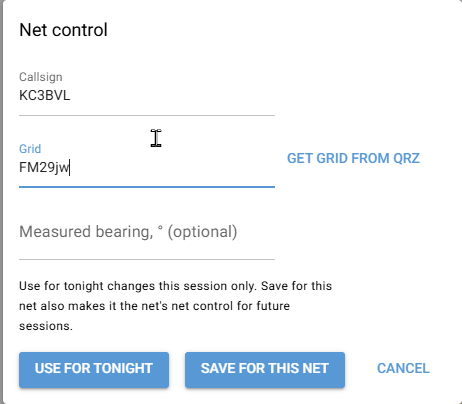
- Set your station. Your callsign and grid square. Every bearing starts from here.
- Pick a net. Choose one of the example nets, create your own, or import one someone shared.
- Follow or run it. Bearings to and from net control, sector alerts, fast check-in logging.
- Connect a rotator if you want. PstRotator or PstRotatorAz on Windows, or Hamlib’s rotctld. Nothing turns until you press a button.
Works with no internet connection. Your stations, nets and history stay in one file on your own computer.
Download Beam Navigator v1.5.0
- Free
- Windows, macOS, Linux, Raspberry Pi
- Works offline
- GPL-3.0
Tell me who you are and I’ll send you to the download. Check the box if you’d like an email when a new version comes out.
After you submit, you’ll land on the GitHub release page. Download BeamNavigatorSetup.exe from there, or BeamNavigator.exe to run it without installing.
Privacy: your name, callsign and email are only used for Beam Navigator. If you check the box, you’ll get an email when there’s a new version. Never sold, never shared. Want off the list? Email beam-navigator@n2lqh.com.
Running macOS, Linux or a Pi, or just want the code? It’s all on GitHub, no form needed.
Getting started and FAQ
How do I install it on Windows?
Download BeamNavigatorSetup.exe and run it. It installs for your Windows user only, so no administrator password is needed. The installer isn’t signed yet, so Windows may say “Windows protected your PC.” Choose More info, then Run anyway. After that, start Beam Navigator from the Start menu. It opens in your browser, with no other window. To stop it, press Quit at the top right of any page. To update, run the new installer; your stations, nets and history stay put.
Does it run on Mac, Linux or a Raspberry Pi?
Yes, from the source on GitHub using uv. The steps are in the user guide. The single-file program is Windows only for now.
Which rotators does it work with?
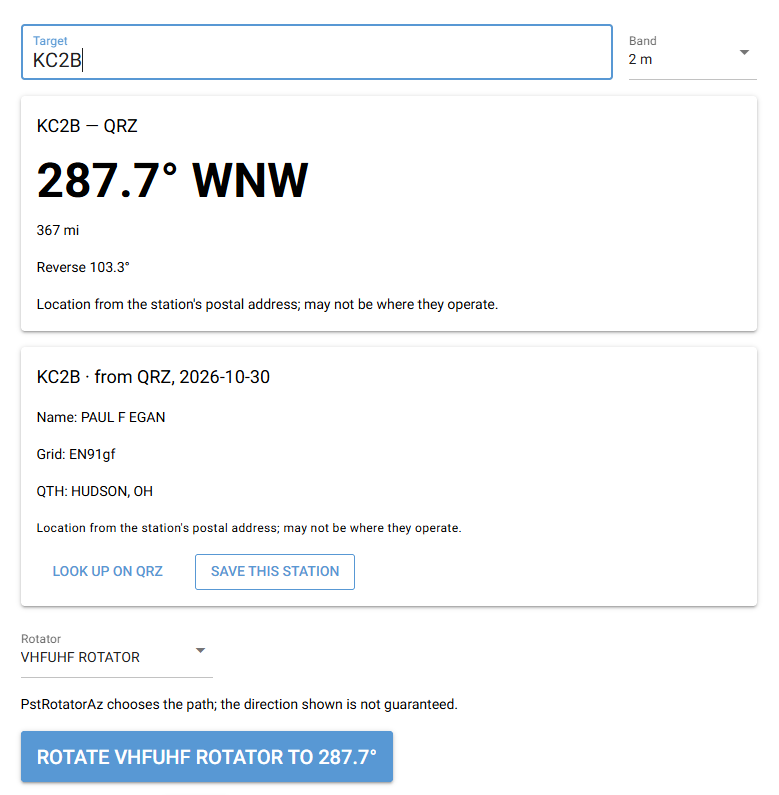
Anything PstRotator or PstRotatorAz can drive on Windows, and anything Hamlib’s rotctld supports. Between them, that covers most rotators hams own. No rotator? You get everything except the Rotate button.
Will it move my antenna on its own?
No. The antenna only turns when you press Rotate, Rotate to net control or Stop, or their keys. Every new rotator starts in simulation and can’t go live until it passes a connection test.
Do I need a QRZ subscription?
No. QRZ lookups are optional and need a QRZ XML Data subscription. Your QRZ login is kept in your computer’s own credential store, never in Beam Navigator’s files. Everything else works without it.
Can I use it on more than one PC?
Yes. Since 1.5.0 you can keep the data in a shared network folder (Settings → Data → Data folder), so every PC sees the same nets, stations and logs. Only one PC can have the data open at a time, which keeps it from being damaged. If another PC was left running, press Take over.
Does it need the internet?
No. It works offline. Only the optional QRZ lookups need a connection.
Which bands is it for?
Directional antennas on 10 meters and up: 10 m, 6 m, 2 m, 222, 432, 902, 1296 and microwave. Weak-signal VHF/UHF nets are the main use.
What doesn’t it do?
It doesn’t control your radio, track satellites or the Moon, control elevation, show maps, or sync to the cloud. And it can’t know where net control is actually pointing. It works from where net control is, and from what net control announces.
It’s a beta. How do I report a problem?
Email beam-navigator@n2lqh.com or open an issue on GitHub. Tell me what you pressed, what you expected, and what happened.